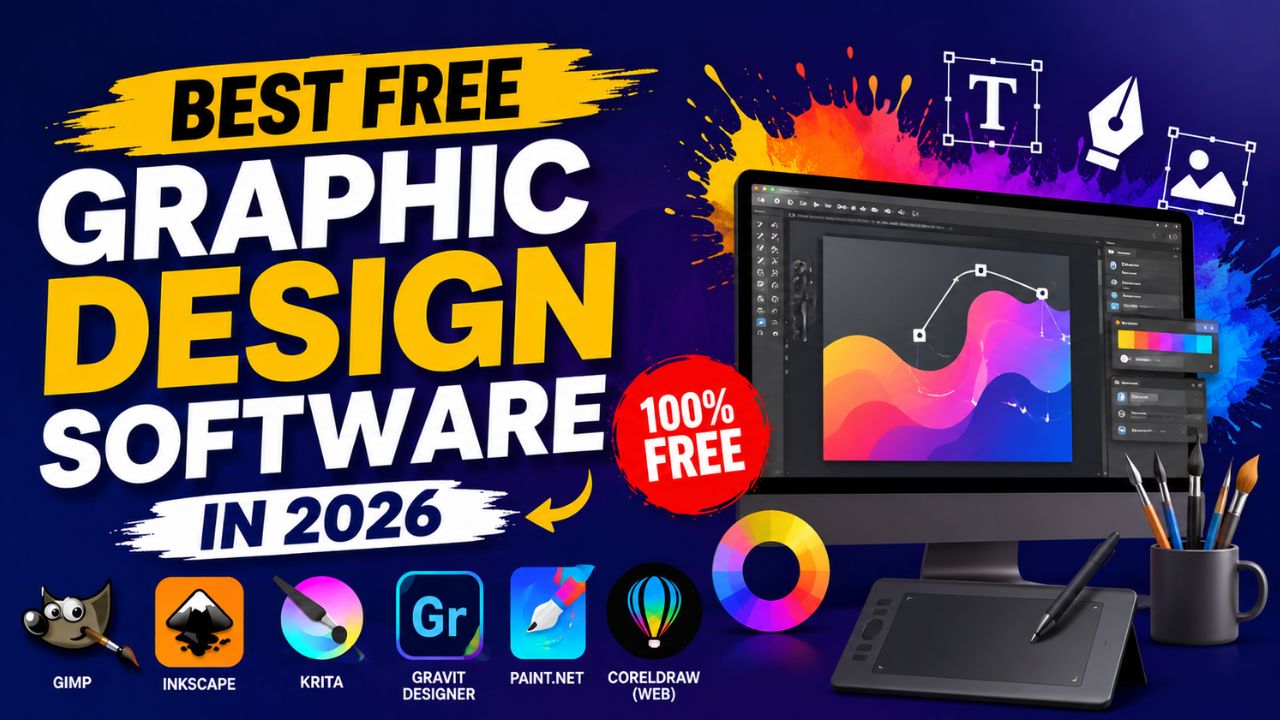
Best Free Graphic Design Software in 2026 (That Actually Don’t Suck)
Last updated: May 2026 | ~3,500 words | Best Free Graphic Design Software
Let me be honest with you for a second.
When I first started making graphics for my blog, I downloaded about six different “free” design tools in one week. Two of them crashed my laptop. One slapped a giant watermark on everything I made. And one was so complicated that I genuinely thought I needed a design degree just to change the font color.
So yeah — I’ve been through it.
The good news? It’s 2026, and the free graphic design software out there right now is genuinely impressive. Some of it is so good that I’ve stopped recommending paid tools to beginners altogether. You can make social media posts, logos, YouTube thumbnails, pitch decks, and even print-ready designs without spending a single rupee or dollar.
This guide is not a random list with copy-pasted descriptions. I’m going to walk you through the tools I’ve actually used (or seen real people use), tell you who each one is good for, and be upfront about where they fall short. No fluff, no paid promotions — just real talk.
Let’s get into it. Best Free Graphic Design Software
First, A Quick Reality Check About “Free” Tools
Before we start, I want to save you some frustration.
When a design tool says “free,” it usually means one of three things: Best Free Graphic Design Software
1. Genuinely free — no credit card, no watermark, no catch. Tools like GIMP, Inkscape, and Krita fall here. They’re free because they’re open-source, maintained by communities of developers who just want the software to exist.
2. Freemium — free to use, but the best stuff is locked behind a subscription. Canva is the biggest example. You can do a LOT for free, but certain premium templates and features require Canva Pro.
3. Free trial — technically free, but only for 7 or 30 days. This one is a trap for beginners. Always check if a tool has a permanent free plan before you invest time learning it.
I’ll be clear about which category each tool falls into throughout this guide.
The 8 Best Free Graphic Design Tools in 2026
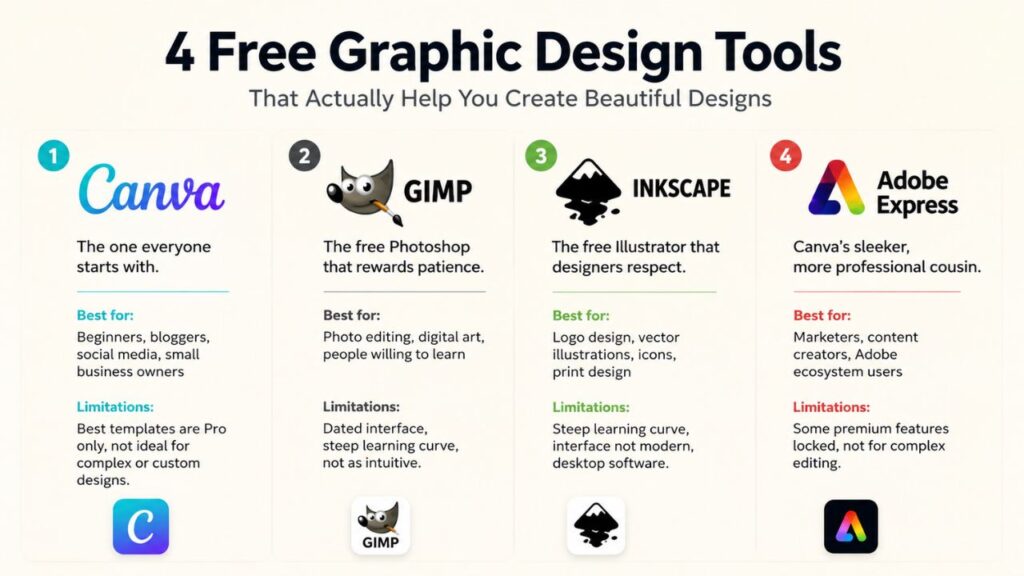
1. Canva — The One Everyone Starts With (For Good Reason)
Best for: Beginners, bloggers, social media managers, small business owners
Free plan: Yes, genuinely useful
Watermark: No
Okay, let’s start with the obvious one.
Canva has basically become the Microsoft Word of graphic design. Almost everyone has used it, and if you haven’t, you’re going to feel very silly once you do because it’s extremely easy.
Here’s a real-life example: My cousin runs a small bakery in Pune. She had zero design experience. Zero. I showed her Canva one afternoon, and within two hours she was making Instagram posts with her own logo, consistent brand colors, and actually nice typography. She didn’t ask me a single question. That’s how intuitive it is.
In 2026, Canva’s free plan gives you access to 1.6 million templates, 4.7 million stock assets, and a drag-and-drop editor that works in any browser — no download needed. They’ve also added some genuinely useful AI features, like a background remover and a magic resize tool that adapts your design to different dimensions automatically.
Where it falls short: The free plan is great, but you’ll hit a wall pretty fast. A lot of the best-looking templates have a small crown icon on them — that means they’re Pro only. You can still use them, but you’ll need to pay or find a free alternative. Also, if you’re trying to do anything custom or complex (like a detailed illustration or a multi-page PDF), Canva starts to feel limiting.
My honest take: If you’re running a blog, an Instagram page, or a small business and you just need things to look clean and consistent — Canva is your tool. Don’t overthink it.
2. GIMP — The Free Photoshop That Rewards Patience
Best for: Photo editing, digital art, people willing to learn
Free plan: Completely free and open-source
Watermark: Never
GIMP stands for GNU Image Manipulation Program, which is a terrible name, but don’t let that put you off.
It’s the most powerful free photo editing tool available, period. Layers, masks, curves, levels, custom brushes — it has everything Photoshop has, with a learning curve that’s somewhere between “challenging” and “humbling.”
Here’s how to think about it: Canva is like cooking with a meal kit — everything’s prepped, you just assemble. GIMP is like cooking from scratch with raw ingredients. More effort, more control, better results if you know what you’re doing.
A friend of mine runs a photography Instagram. She shoots portraits and wanted to do serious retouching — skin smoothing, background replacement, color grading — without paying for Photoshop. She switched to GIMP, spent about two weeks watching YouTube tutorials, and now she does edits that legitimately look professional. The learning period hurt, but now she says she’d never go back.
Where it falls short: The interface is genuinely dated. It looks like software from 2005 because, well, it kind of is. The team released GIMP 3.0 recently, which improved things somewhat, but it’s still not a modern, clean experience. If you’re used to sleek software like Figma or Canva, GIMP is going to feel jarring.
My honest take: If you want to do serious photo editing and you’re willing to spend a few weekends learning it — GIMP is incredible. If you want something you can use tomorrow with no tutorials, skip it.
3. Inkscape — The Free Illustrator That Designers Actually Respect
Best for: Logo design, vector illustrations, icons, print design
Free plan: Completely free and open-source
Watermark: Never
Every professional designer I’ve ever talked to has a version of the same story: “I started with Inkscape before I could afford Illustrator, and honestly, I learned more from it than I did from Illustrator.”
Inkscape works with vector graphics, which means your designs can be scaled up to billboard size without losing any quality. This is crucial for logos, brand assets, and anything you’ll print. If you design a logo in Canva and try to blow it up to print size, it’ll look blurry. A logo made in Inkscape? Crisp and perfect at any size.
Real example: A friend of mine built a small brand from scratch — t-shirts, tote bags, stickers — all designed using Inkscape. Every design, every logo, every variation. He never paid for Adobe Illustrator. His brand looks as clean as anything you’d see on a professional agency’s portfolio.
Where it falls short: Similar to GIMP — the interface is not pretty, and the learning curve is steep. It’s also desktop software, so you need to download and install it. And some features that Illustrator makes simple take a bit more finagling in Inkscape.
My honest take: If you need to create logos, icons, or any kind of vector art — download Inkscape. It’ll take time to learn, but it’s absolutely the right tool. You’ll thank yourself later.
4. Adobe Express — Canva’s Sleeker, More Professional Cousin
Best for: Marketers, content creators, Adobe ecosystem users
Free plan: Yes, with solid features
Watermark: No on the free plan
Adobe Express is what happens when a company that makes professional design tools tries to make something simpler for normal people — and actually succeeds.
It has the polish you’d expect from Adobe, the ease of use you’d expect from Canva, and a free plan that’s surprisingly generous. You get access to thousands of templates, Adobe Fonts (which are genuinely beautiful and way more varied than what you get in Canva), and one-click tools for removing backgrounds, animating text, and resizing content.
The thing that sets Adobe Express apart is the quality of the typography options. Fonts matter so much in design — they determine whether your graphic looks amateur or professional — and Adobe’s font library is exceptional.
Practical example: If you’re a content marketer making Instagram carousels, LinkedIn banners, and blog featured images, Adobe Express hits a sweet spot. It’s fast enough that you can make things without overthinking, and polished enough that the output looks intentional.
Where it falls short: Some features — like premium templates and certain AI tools — are locked behind a paid plan. And if you’re not already in the Adobe ecosystem, the integration benefits don’t really apply to you. It also doesn’t have the depth of GIMP or Inkscape for complex editing.
My honest take: Genuinely one of the most underrated free tools out there. If Canva’s templates are starting to feel stale to you, Adobe Express is worth exploring. The font options alone are worth it.
Best Free Graphic Design Software
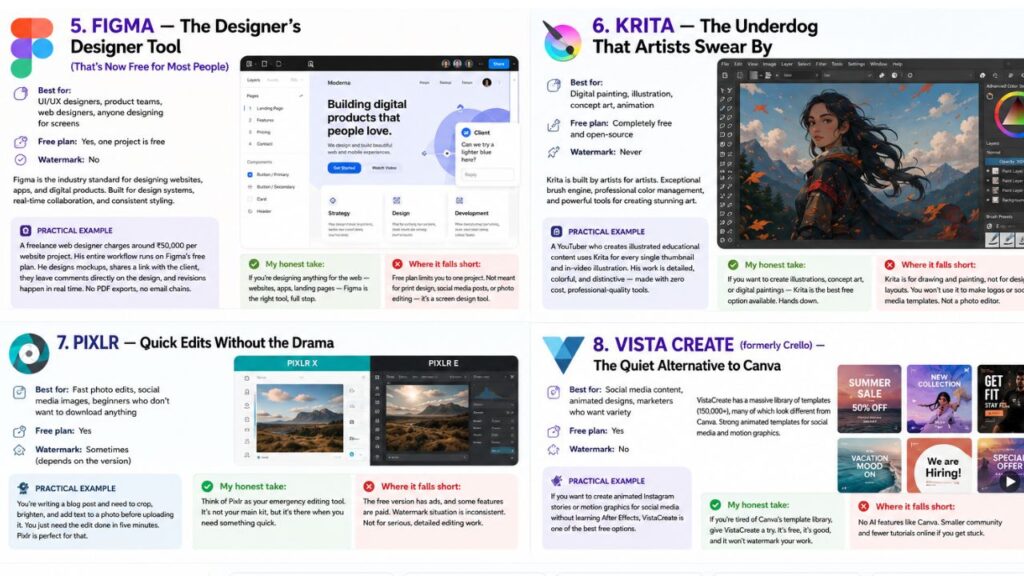
5. Figma — The Designer’s Designer Tool (That’s Now Free for Most People)
Best for: UI/UX designers, product teams, web designers, anyone designing for screens
Free plan: Yes, one project is free
Watermark: No
Figma is the tool that professional designers use. Not just some of them — most of them. It’s become the industry standard for designing websites, apps, and digital products, and in 2026, the free tier is workable for solo creators.
What makes Figma different from everything else on this list is that it’s built specifically for design systems. You can create reusable components, maintain consistent styles across an entire project, and collaborate with other people in real time — like Google Docs but for design.
Here’s a practical example: I know a freelance web designer who charges around ₹50,000 per website project. His entire workflow runs on Figma’s free plan. He designs the mockups, shares a link with the client, the client can click around and leave comments directly on the design, and revisions happen in real time. No PDF exports, no email chains, no confusion.
Where it falls short: The free plan now limits you to one project, which is frustrating if you’re juggling multiple clients or projects. Also — and this is important — Figma is not really meant for print design, social media posts, or photo editing. It’s a screen design tool. If you try to use it for Instagram posts or logos for physical products, you’ll hit limitations quickly.
My honest take: If you’re designing anything for the web — websites, apps, landing pages — Figma is the right tool, full stop. If you’re making Instagram posts or flyers, use Canva instead.
6. Krita — The Underdog That Artists Swear By
Best for: Digital painting, illustration, concept art, animation
Free plan: Completely free and open-source
Watermark: Never
Krita is the tool that nobody talks about enough.
While everyone’s debating Canva versus Adobe Express, a whole community of digital artists and illustrators is quietly using Krita to make genuinely stunning work — character illustrations, concept art, book covers, graphic novel panels — and paying exactly zero dollars for it.
Krita is built by artists for artists. The brush engine is exceptional. It has more brushes and brush customization options than you’ll ever need. The color management is professional-grade. And in 2026, Krita 6.0 brought in canvas-editable text, better vector tools, and HDR-aware filters.
Real example: A YouTuber who creates illustrated educational content uses Krita for every single thumbnail and in-video illustration. His thumbnails are detailed, colorful, and distinctive — they look like they were made by a professional illustrator, because from a tools perspective, they were.
Where it falls short: Krita is for drawing and painting, not for design layouts. You won’t use it to make a logo or a social media template. It’s also not a photo editor — that’s GIMP’s job. Think of it as a specialized tool for a specific type of creative work.
My honest take: If you want to create illustrations, concept art, or digital paintings — Krita is the best free option available. Hands down.
7. Pixlr — Quick Edits Without the Drama
Best for: Fast photo edits, social media images, beginners who don’t want to download anything
Free plan: Yes
Watermark: Sometimes (depends on the version)
Pixlr is what you use when you need to edit a photo right now, from your browser, without installing anything or logging into anything.
It’s not trying to be Photoshop. It knows it’s not Photoshop. What it is, is a fast, lightweight, browser-based editor that handles the basics — cropping, filters, adjustments, overlays, text — with almost zero setup.
Practical example: You’re writing a blog post and you have a photo that needs to be cropped, brightened, and have some text added before you upload it. You don’t want to wait for GIMP to load. You don’t need the advanced features. You just need the edit done in five minutes. Pixlr is perfect for that.
They have two versions: Pixlr X (simpler, more like Canva) and Pixlr E (more like Photoshop). Both run in your browser.
Where it falls short: The free version has ads, and some features are gated behind a paid plan. The watermark situation is inconsistent — sometimes it appears, sometimes it doesn’t, depending on which features you use. It’s also not the tool for serious, detailed editing work.
8. Vista Create (formerly Crello) — The Quiet Alternative to Canva
My honest take: Think of Pixlr as your emergency editing tool. It’s not your main kit, but it’s there when you need something quick.
Best for: Social media content, animated designs, marketers who want variety
Free plan: Yes
Watermark: No
VistaCreate doesn’t get nearly the attention it deserves. If you’re a Canva user who’s gotten bored of seeing the same templates everywhere, VistaCreate is genuinely refreshing.
It has a massive library of templates (150,000+), and importantly, many of them look noticeably different from what you see in Canva. The animated templates are especially strong — if you want to make animated Instagram stories or motion graphics for social media without learning After Effects, VistaCreate is one of the best free options.
It’s also lighter on your browser than Canva, which matters if you’re on an older machine.
Where it falls short: It doesn’t have Canva’s AI features, and the community and tutorial ecosystem around it is much smaller. If you get stuck, you’ll find fewer answers online.
My honest take: If you’re a social media manager or content creator who’s tired of Canva’s template library, give VistaCreate a try. It’s free, it’s good, and it won’t watermark your work.
How to Actually Choose the Right Tool
Best Free Graphic Design Software -Here’s the thing nobody tells you: you don’t have to pick just one.
Most people who do design work regularly end up with a small stack of tools. Something like:
- Canva or Adobe Express for quick social media content and everyday graphics
- GIMP for photo editing and retouching
- Inkscape for logos and anything that needs to be printed or scaled
- Figma if they design websites or apps
- Krita if they do illustration work
You don’t need all of these. But knowing they exist means you can pick the right tool for each job instead of forcing one tool to do everything.
Here’s a simple way to decide:
Best Free Graphic Design Software
If you’re a blogger or content creator: Finaaly Start with Canva. Add Adobe Express for variety. Use GIMP when you need to edit actual photos.
If you’re a small business owner: Canva for day-to-day content, Inkscape for your logo and brand assets.
If you’re a web designer or developer: Figma, full stop. Learn it well.
If you’re an artist or illustrator: Krita for your art, Inkscape if you ever need vector work.
If you just need something quick and easy: Canva for almost everything, Pixlr when you’re in a hurry.
The Mistakes Beginners Make With Free Design Tools
I’ve watched a lot of people struggle with design when they didn’t need to. Here are the most common traps:
Mistake 1: Trying to learn everything at once. Pick one tool. Use it until you feel genuinely comfortable. Then explore others. Jumping between five tools simultaneously means you’ll never get good at any of them.
Mistake 2: Using too many fonts. This is the number-one sign of an amateur design. Stick to two fonts maximum — one for headings, one for body text. Canva and Adobe Express make this easy because their templates already have font pairings built in.
Mistake 3: Ignoring white space. Beginners always want to fill every inch of the design with something. Professional designers use empty space intentionally. Less is almost always more.
Mistake 4: Using low-quality images. Even the best design tool can’t save a blurry, pixelated photo. Use free stock photo sites like Unsplash or Pexels. High-quality images make everything look better instantly.
Mistake 5: Downloading software you don’t need yet. If you’re just starting out, don’t download GIMP and Inkscape on day one. Start with Canva. Once you hit Canva’s limits, then explore more powerful tools. There’s no trophy for using the most complex software.
A Note on AI Design Tools in 2026
I’d be doing you a disservice if I didn’t mention AI.
In 2026, almost every major design tool has some kind of AI integration. Canva has Magic Studio. Adobe Express has Firefly. Figma has its own AI features. And there are standalone AI design tools like Midjourney, Ideogram, and Adobe Firefly that can generate entire visuals from text prompts.
These tools are genuinely useful for certain things — generating background images, creating variations of an idea, or getting unstuck when you don’t know how to start a design.
But they don’t replace the fundamentals. Knowing how to use composition, color, and typography well still matters — arguably more than ever, because everyone now has access to AI-generated images, and the ones that look good are usually the ones where a human made deliberate choices about how to use those images.
Think of AI tools as ingredients, not chefs. They can hand you raw material. What you do with it still requires taste and judgment.
Quick Comparison Table
| Tool | Best For | Free? | Desktop or Browser | Learning Curve |
|---|---|---|---|---|
| Canva | Everything general | Freemium | Both | Very easy |
| GIMP | Photo editing | 100% free | Desktop | Hard |
| Inkscape | Logos, vector art | 100% free | Desktop | Hard |
| Adobe Express | Social media, marketing | Freemium | Both | Easy |
| Figma | Web/UI design | Freemium | Both | Medium |
| Krita | Digital painting | 100% free | Desktop | Medium |
| Pixlr | Quick photo edits | Freemium | Browser | Very easy |
| VistaCreate | Social media, animation | Freemium | Browser | Easy |
Final Thoughts — You Don’t Need to Spend Money to Design Well
Hence ,The honest truth is that the best free graphic design software in 2026 is genuinely competitive with paid tools for most people’s needs. The gap between free and paid has narrowed dramatically in the last few years.
What still costs money is your time — learning the tools, developing an eye for design, making mistakes and fixing them. That’s the actual investment. And it’s worth it.
Start simple. Pick one tool from this list that matches what you’re trying to make. Use it consistently. Pay attention to designs you like out in the world — save screenshots, notice what makes them work — and try to apply those ideas to your own work.
You’ll be surprised how quickly things click.
Frequently Asked Questions
Canva, without question. It’s the most beginner-friendly option available, it works in your browser, and the free plan is genuinely useful for everyday design needs.
Absolutely. Many professional designers use GIMP, Inkscape, Figma (free tier), and Canva for paid client work. The tool doesn’t determine the quality — your skills and judgment do.
They’re different rather than one being better. Canva has more templates and is slightly easier to use. Adobe Express has better typography options and feels more polished. Try both — both have free plans.
GIMP is the closest thing to a free Photoshop. It has nearly all the same features, but with a steeper learning curve and a less modern interface.
Inkscape. It handles vector graphics, SVG files, and complex illustrations the same way Illustrator does, and it’s completely free and open-source.
Canva, Adobe Express, Vista Create, and Pixlr all have mobile apps. GIMP, Inkscape, Krita, and Figma work best on desktop.
The free plan is genuinely usable, not just a teaser. Templates, basic editing, enough elements for posters, resumes, social posts — all there without spending a rupee. What’s locked is the fun stuff though. Premium templates, certain stock photos, background remover, brand kits. That’s Canva Pro territory. If you’re just starting out, don’t even think about upgrading yet. You’ll know when you’ve outgrown the free version — usually it’s when you keep clicking a template and it says “Pro” in the corner and you get mildly annoyed.
You can make one yourself, sure. A lot of people do, especially when they’re bootstrapping. Canva’s logo tool is fine for something quick and decent-looking.
But here’s the thing — if you want it to actually scale well (think: printed big on a shop banner, not just a tiny Instagram profile picture), you need vector software. Inkscape does that. It’s free, but it’s not as beginner-friendly as Canva, so expect a bit of a learning curve.
One honest note though — free software gives you the tools, not the design sense. If your logo still looks “off” after using these, that’s not a software problem, that’s usually a spacing/color/font pairing problem. Sometimes worth getting a second opinion from someone with a design eye, even if the rest of your work stays DIY.
Depends what you’re doing with the photo.
Heavy stuff — retouching, color grading, background removal — go with GIMP. It’s built more like a photo editor at its core. Quick fixes, cropping, small adjustments — Photopea is faster for that, and again, no install needed.
There’s also Krita, which people forget about because it’s marketed as digital art software. But it’s actually decent for adding illustrated touches to photos if you’re into that kind of creative edit
Found this helpful? finally Share it with someone who’s been wasting money on design subscriptions they don’t need. And if you have a tool I missed that you genuinely love — drop it in the comments. I read them all.
Best Video Editing Apps For beginners in 2026 :- Click here