
Google Search Console Complete Guide (2026): The Only Guide You’ll Actually Need
Google search console complete guide- I remember the first time I heard about Google Search Console. Someone in an SEO Facebook group said “just check your GSC” like it was the most obvious thing in the world. I had no idea what they were talking about.
So I Googled it, set it up, opened the dashboard — and had absolutely no clue what I was looking at.
If that sounds familiar, you’re in the right place. This guide is everything I wish someone had explained to me back then, written in plain language that actually makes sense.
Table of Contents
- What Is Google Search Console, Really?
- Why You Can’t Afford to Skip This Tool
- Setting It Up — Step by Step, No Tech Headaches
- The Dashboard — What You’re Actually Looking At
- The Performance Report — This One Changes Everything
- Indexing Report — Is Google Even Seeing Your Pages?
- URL Inspection Tool — Your Page-Level Detective
- Core Web Vitals — Because Slow Sites Don’t Rank
- The Links Report — Who’s Talking About You
- Sitemaps — Stop Making Google Hunt for Your Content
- GSC and Google AI Overviews — The 2026 Angle Nobody Talks About
- Mistakes That Are Quietly Killing Your Rankings
- GSC + GA4 — Two Tools, One Clear Picture
- Your First-Week Action Checklist
- FAQ
Google search console complete guide
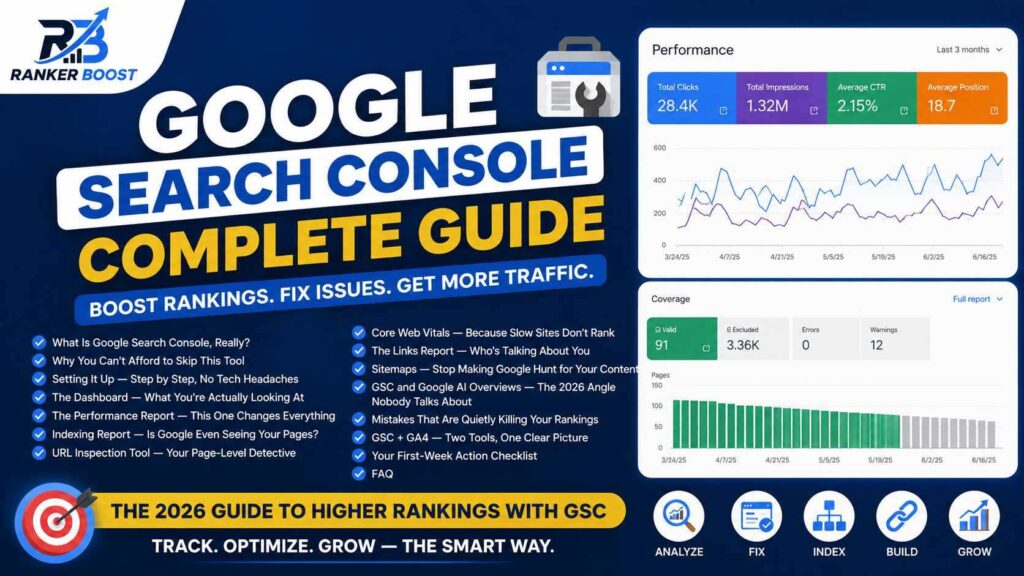
What Is Google Search Console, Really?
Here’s the simplest way I can explain it. Google search console complete guide
You publish a page. You want it to show up on Google. But between publishing and ranking, there’s a whole invisible process happening — Google sends its crawler to find your page, reads it, decides whether to add it to its index, then figures out what searches it should show up for.
Google search console complete guide shows you all of that. Not estimates, not guesses — the actual data straight from Google.
It tells you which of your pages Google has found and indexed. It tells you what keywords real people are typing that lead to your site. It shows you if something on your site is broken, slow, or confusing to Google. And it lets you ask Google to crawl specific pages faster when you need it to.
No other tool does all of this because no other tool has direct access to Google’s own data. Third-party SEO tools are making educated guesses. GSC is giving you the answer sheet.
And it costs nothing.
Google search console complete guide
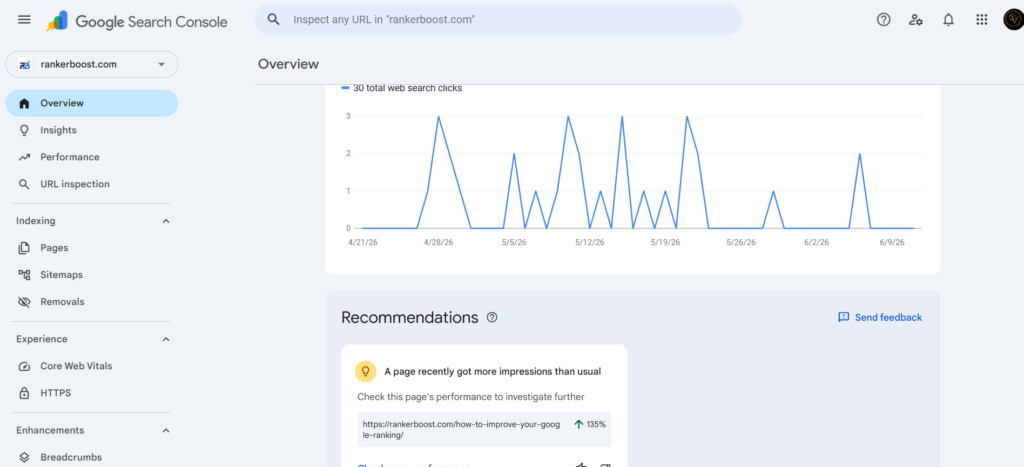
Why You Can’t Afford to Skip This Tool
Let me give you a couple of real situations that show why this matters.
Say you published a blog post three weeks ago. You’re proud of it, it’s well-written, but it’s getting zero traffic. You might assume the topic is too competitive, or that your site just isn’t strong enough yet. But what if the actual reason is simpler — Google just hasn’t indexed that page? It’s still sitting in a “discovered but not crawled” state. Without GSC, you’d never know. You’d keep wondering. With GSC, you’d see the problem in about 30 seconds and fix it.
Or this one: you think your site is ranking for “best budget laptops” because that’s what you wrote about. But GSC shows you that 70% of your impressions are actually coming from “cheap laptops for students.” That’s your audience telling you exactly what they want. Now you can adjust your content, your titles, your internal linking — and suddenly what was a mediocre-performing article becomes one of your best.
That’s what GSC does. It removes the guesswork.
Without it, you’re publishing content and hoping. With it, you’re seeing what’s actually working, what’s broken, and where the opportunities are hiding.
Setting It Up — Step by Step, No Tech Headaches
This part scares people, but it really shouldn’t. You can have this done in under 15 minutes.
Go to GSC and Sign In
Head to search.google.com/search-console. Sign in with your Google account — the same Gmail or Google account you already use. If you don’t have one, make a free account first.
Choose Your Property Type
Once you’re in, GSC will ask you to add a property. You’ll see two options: Domain or URL Prefix.
Domain is the stronger choice. It tracks all versions of your site — http, https, with www, without www — all in one place. The catch is it requires DNS verification, which means logging into wherever you bought your domain name and adding a record there.
URL Prefix is easier to set up and has more verification options, but it only covers one specific version of your URL. If you’re not comfortable with DNS, start here.
My suggestion: go with Domain if your hosting provider or domain registrar has a simple DNS panel. Most of them do, and the process only takes a few minutes.
Verify That You Own the Site
GSC needs proof you actually own the site before showing you its data. Depending on which property type you chose, your options include:
DNS record — You add a small text record to your domain’s DNS settings. Your domain registrar (GoDaddy, Namecheap, Cloudflare, etc.) will have a DNS management section where you paste in what Google gives you.
HTML meta tag — Google gives you a small snippet of code. You add it to the <head> section of your homepage. If you’re on WordPress, a plugin like Yoast or Rank Math lets you paste it in without touching code.
HTML file upload — Download a small file Google provides, upload it to your website’s root folder.
Via Google Analytics — If GA4 is already installed on your site, you can verify through that. Easy and quick.
Via Google Tag Manager — Same idea, works through GTM if you’re already using it.
One important thing — whichever method you use, don’t remove it later. If the verification disappears (like if you remove the meta tag or delete the HTML file), you’ll lose access to that GSC property.
Submit Your Sitemap
Once you’re verified, go to Indexing > Sitemaps. Type in your sitemap URL — most sites have it at yourwebsite.com/sitemap.xml — and hit Submit.
If you’re on WordPress with Yoast, Rank Math, or even the default block editor, your sitemap is probably already there. On Shopify it’s automatic. On other platforms, check your settings or documentation.
Submitting your sitemap isn’t mandatory, but it tells Google exactly where your content is, which speeds everything up significantly.
Google search console complete guide
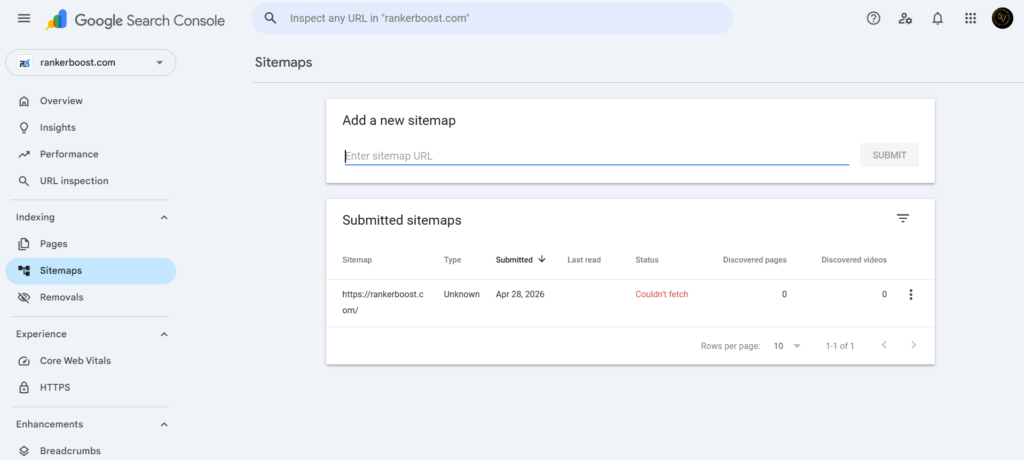
The Dashboard — What You’re Actually Looking At
When you first land in GSC, you’ll see the Overview page. It pulls in summary data from different sections of your account so you can get a quick pulse check on how things are going.
The four numbers you’ll see throughout GSC are:
Impressions — How many times one of your pages appeared somewhere in Google’s search results. The person didn’t have to click. It just showed up.
Clicks — How many times someone actually clicked through to your site from a Google search result.
CTR (Click-Through Rate) — What percentage of impressions turned into clicks. If your page showed up 1,000 times and got 30 clicks, your CTR is 3%.
Average Position — Your average ranking position in Google. Position 1 is the top result. The lower this number, the better you’re doing.
Quick note on average position — don’t fixate on your site-wide average position too much. If you start ranking for a bunch of new keywords where you start at position 40 or 50, your average naturally drops even though your established rankings haven’t moved. It doesn’t mean something went wrong.
The Performance Report — This One Changes Everything
This is where most people should be spending their time in GSC, especially when they’re starting out. Go to Performance > Search Results.
What you’re looking at is a complete list of every search query that caused your pages to show up in Google — along with how many impressions and clicks each query got, your CTR, and your average position.
Read that again: every search query. Real searches that real people did. Not estimated. Not projected. Actual.
The Quick-Win Strategy Most People Miss
Here’s something I want you to do right now. Open the Performance report and sort by Average Position. Then look for all the queries where your position is between 8 and 20.
These pages are almost ranking well. They’re showing up, they’re getting some impressions, but they’re not quite in the top spots. A position-12 result gets a fraction of the clicks that a position-3 result gets.
The opportunity here is massive — improving a page that’s already ranking at position 12 is usually far easier than trying to build something brand new to rank from scratch. Update the content, add more depth, improve the title tag, fix the meta description. Sometimes that’s all it takes to jump several spots.
How to Find the Best Keywords for a Specific Page
Click on the Pages tab at the top of the Performance report. Click on one of your pages. Then click back to the Queries tab.
Now you’re seeing every keyword that specific page is ranking for. This is incredibly useful for figuring out whether a page is doing what you designed it to do — and discovering keywords you might not have known you were ranking for.
Sometimes you’ll find that a page you built for one keyword is getting most of its traffic from a slightly different keyword. That’s your audience telling you what they actually care about.
Indexing Report — Is Google Even Seeing Your Pages?
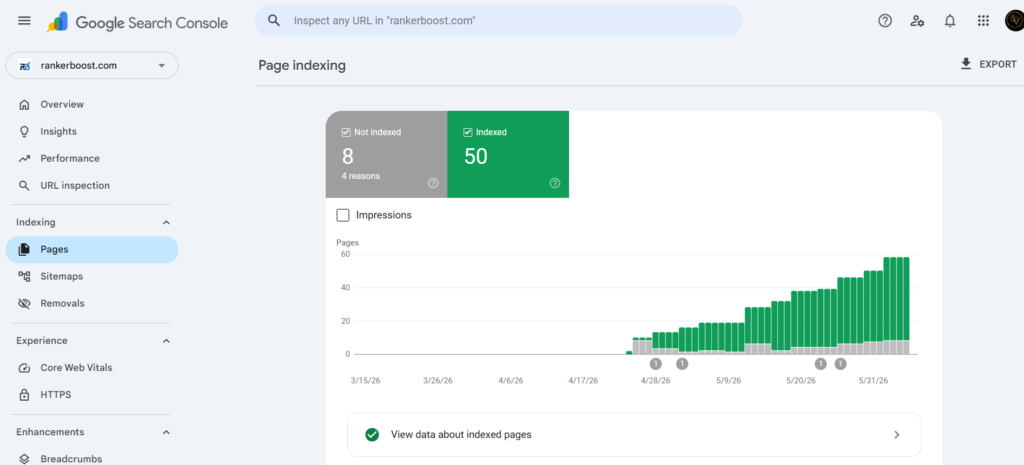
Go to Indexing > Pages. This report is your diagnostic tool for figuring out which pages Google has added to its index and which ones it hasn’t — along with the reasons why.
The reasons pages don’t get indexed can sound alarming at first, but most of them are completely fine. Here’s how to read them:
“Crawled – currently not indexed” — Google visited the page but decided not to add it to the index. This usually means Google thinks the page is too thin, too similar to other content, or not useful enough to rank. The fix here is to improve the content. Add more depth, more original information, more value.
“Discovered – currently not indexed” — Google knows the page exists but hasn’t gotten around to reading it yet. If it’s an important page, use URL Inspection to request indexing. For smaller or less important pages, it’ll usually sort itself out.
“Excluded by noindex tag” — Someone (you, a plugin, your CMS) told Google not to index this page. That’s totally intentional in many cases — you wouldn’t want your checkout page or your login page showing up in Google. But double-check that this tag isn’t on pages you actually want indexed. It’s a surprisingly common accident.
“Not found (404)” — The page doesn’t exist anymore. Google is still trying to reach it, possibly from an old link or a reference in your sitemap. If you deleted the page or changed its URL, set up a 301 redirect pointing the old address to the new one.
“Duplicate without user-selected canonical” — Google thinks this page is too similar to another page on your site. It’s indexing the other one instead. You can either consolidate the content or add a canonical tag pointing to the version you want indexed.
The big thing to remember here: not every unindexed page is a red flag. Focus your attention on making sure your key blog posts, product pages, and service pages are indexed. Don’t worry too much about the others unless something clearly looks wrong.
URL Inspection Tool — Your Page-Level Detective
Paste any URL from your site into the search bar at the top of GSC. That’s the URL Inspection tool.
What you get back is surprisingly detailed. GSC will tell you whether the page is indexed, when Google last crawled it, how Google discovered it in the first place (through a sitemap, through a backlink, etc.), and whether there are any issues with the page that might prevent it from ranking.
When to Use It
Just published something important? Use URL Inspection to check if Google can access it, then click “Request Indexing” to give it a nudge. Google doesn’t promise it’ll crawl immediately, but it does put the page in a priority queue.
Worried a page isn’t showing up in search even though it looks fine on your end? URL Inspection will often reveal the issue — maybe there’s a noindex tag that snuck in, or the page is being flagged as a redirect, or Google is hitting an error when it tries to access it.
The “Test Live URL” button is also worth using. It shows you the page exactly as Googlebot sees it. If your content is loading through JavaScript in a way Google can’t render properly, this will catch it.
Core Web Vitals — Because Slow Sites Don’t Rank
Go to Experience > Core Web Vitals. This section measures how your site actually feels to use — and Google uses this as a ranking factor, so it matters.
Three things are being measured:
LCP (Largest Contentful Paint) — How fast your main content loads on screen. Google wants this under 2.5 seconds. If it’s pushing 4-5 seconds, users are leaving before they even read anything, and Google knows it.
INP (Interaction to Next Paint) — How quickly your page responds when someone does something — clicks a button, opens a menu, taps a link. A laggy response makes your site feel broken even when it isn’t.
CLS (Cumulative Layout Shift) — You know when you’re about to tap something on your phone and suddenly the page jumps and you accidentally tap the wrong thing? That’s layout shift. Google tracks this because it’s genuinely frustrating to users and they’ve decided to penalise sites that do it a lot.
If you’ve got pages showing as “Poor” or “Needs Improvement,” here are the most common culprits: images without defined dimensions, slow server response times, heavy JavaScript loading before the page renders, and third-party scripts from ads or tracking tools.
Start by compressing your images if you haven’t already. That alone fixes a lot of LCP issues.
Google search console complete guide
The Links Report — Who’s Talking About You
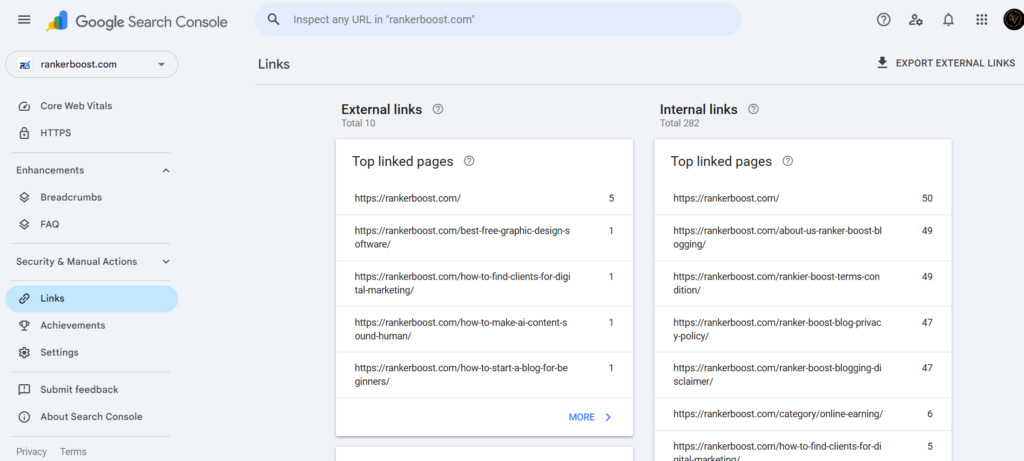
The Links report is tucked near the bottom of the left-side menu. It shows you four things:
Your most-linked pages (external) — Which of your pages other websites are linking to. If one page has 200 backlinks and another has 2, that’s useful information. The well-linked page has more authority and will generally rank better.
Your most-linked pages (internal) — Which pages you’re linking to most from within your own site. This helps you understand how authority flows around your site. Pages with no internal links are harder for Google to find and often rank worse as a result.
Top linking sites — The domains that link to you most. A mix of different quality sites is normal. What you don’t want is most of your links coming from one low-quality source.
Top anchor text — The words people use when they link to you. A healthy mix of your brand name, some keyword variations, and generic terms like “click here” or “read more” is what natural link profiles look like.
One honest limitation: Google search console complete guide the Links report is a snapshot. It doesn’t show you trends over time, so you can’t tell whether you’re gaining or losing links. If you want that, you’ll need a tool like Ahrefs or Moz. But for a free starting point, this is genuinely useful.
Sitemaps — Stop Making Google Hunt for Your Content
An XML sitemap is a file that lists all the important pages on your website. Submitting it to GSC means you’re directly handing Google a map of your site rather than hoping its crawler finds everything on its own.
Go to Indexing > Sitemaps, enter your sitemap URL (usually yoursite.com/sitemap.xml), and click Submit.
If you see a green “Success” status, you’re good. If you see an error, click into it. The most common issue is that the sitemap URL is returning an HTML page instead of an XML file — which usually means a plugin got deactivated or a setting changed somewhere. Reactivate or fix whatever’s generating your sitemap, then remove the old sitemap from GSC and resubmit.
One thing worth checking monthly: how many pages GSC says it discovered from your sitemap. If your site has 50 pages and GSC is only seeing 20 from your sitemap, something’s not right with your sitemap setup.
GSC and Google AI Overviews — The 2026 Angle Nobody Talks About
Here’s something most Google Search Console guides written even a year ago completely skip, and it’s becoming more important by the month.
Google’s AI Overviews — those AI-written summaries that now appear above the traditional results for many searches — are pulling content from websites. If your content is what Google’s AI uses to answer a question, your brand appears prominently at the very top of the page, above every other organic result.
Google search console complete guide helps you understand and optimize for this in a few ways.
Impressions can climb even when clicks stay flat. If your content is being referenced inside an AI Overview, you might see your impressions go way up while clicks don’t grow at the same rate. That’s not a bad sign — it means Google trusts your content enough to use it as a source. The visibility is real even when the click doesn’t happen.
Question-based queries are the key. Go into your Performance report and look specifically for queries that start with “what is,” “how do I,” “why does,” “what are,” or “how to.” These are exactly the kinds of questions AI Overviews are designed to answer. If you’re ranking in positions 1-5 for these queries, you have a real shot at being referenced in the AI-generated answer.
Write like you’re answering a question, not filling a word count. The content that gets pulled into AI Overviews tends to be clear, direct, and structured. Short paragraphs with a specific answer at the top of each section. Real information, not fluff. Concrete examples.
FAQ schema and structured data help. GSC’s Enhancements section will tell you if Google is reading your structured data correctly. If you have FAQ schema on your pages, that’s exactly the kind of structured content AI systems are designed to recognise and use.
Keep important pages updated. GSC can show you when Google last crawled a page. If your high-impression pages haven’t been crawled in months, update them. Add new information, check the accuracy, refresh any outdated stats. Fresh content gets crawled more frequently and is more likely to be used in AI-generated responses.
Google search console complete guide
Mistakes That Are Quietly Killing Your Rankings
You Set It Up and Never Came Back
GSC is not a one-time setup. It’s a tool you need to check regularly. Most people verify their site, look at the dashboard once, and never open it again. Meanwhile, Google is flagging errors, impressions are dropping, pages are getting deindexed — and nobody notices because nobody’s looking.
Get into the habit of checking GSC at least once a week. It takes five minutes.
You’re Treating Every Unindexed Page as an Emergency
Not every page needs to be in Google’s index. If GSC shows you have 300 pages and 80 of them aren’t indexed, don’t panic. Look at which pages aren’t indexed. If they’re all tag pages, author pages, or old redirect pages — that’s probably fine. If your main blog posts or service pages are missing, that’s when you need to investigate.
You’re Looking at Numbers Without Context
A drop in clicks over the last 30 days sounds bad. But if last month was December and this month is January, and you run a gifts website, that’s expected seasonality. Always compare the same period year-over-year when possible, not just month-over-month.
You’re Ignoring the 8-to-20 Zone
Pages ranking between position 8 and 20 are your biggest untapped opportunity and most people just scroll past them. These pages are already in Google’s good books — they just need a little more effort to push them up. This is almost always easier and faster than building a new page from zero.
Your Sitemap Has an Error and You Haven’t Noticed
Sitemap errors are silent. GSC won’t email you about them unless you check. Go look at your Sitemaps report right now. If you see anything other than “Success,” dig into it.
You’re Not Using URL Inspection Before Publishing Important Pages
Before you publish a new page you’ve worked hard on, paste the URL into the inspection tool and run a live test. Make sure there are no indexing blocks, canonical issues, or rendering problems. It takes 30 seconds and can save you weeks of wondering why the page isn’t showing up.
GSC + GA4 — Two Tools, One Clear Picture
Google Search Console tells you how people find you. Google Analytics 4 tells you what they do once they get there. On their own, each tool gives you half the story. Together, they give you the full picture.
Linking them is worth doing. In GA4, go to Admin, then look for Search Console Links under the Property column. Follow the steps to connect your GSC property.
Once that’s done, GA4 will show a Search Console section in its Reports area with two new reports:
Queries — All your organic search queries from GSC, now viewable alongside GA4 data. You can see things like which search queries lead to the most engaged users, not just the most clicks.
Google Organic Search Traffic — Your landing pages from organic search, with both GSC performance data (clicks, impressions, CTR) and GA4 data (engagement time, conversions, events) in one table.
The insight this unlocks is genuinely powerful. You might have a page ranking in position 2 for a good keyword, getting hundreds of clicks a week — but GA4 shows people are leaving within 10 seconds. That tells you the page isn’t delivering what searchers expected. Fix the content, and you fix both the bounce rate and the long-term ranking.
Your First-Week Action Checklist
Google search console complete guide Here’s exactly what to do if you’re starting fresh or want to make sure you’ve done everything right:
- [ ] Go to search.google.com/search-console and sign in
- [ ] Add your website as a property (Domain type if possible)
- [ ] Verify ownership using whichever method works for your setup
- [ ] Submit your sitemap under Indexing > Sitemaps
- [ ] Open the Performance report and look at your top 10 queries
- [ ] Find queries where your position is between 8 and 20 — those are your quick wins
- [ ] Open the Indexing report and check whether your important pages are indexed
- [ ] Run URL Inspection on your top 5 most important pages
- [ ] Check the Core Web Vitals report for any “Poor” URLs
- [ ] Link GSC to GA4 for deeper insights
- [ ] Set a weekly calendar reminder to check GSC going forward
FAQ
Google Search Console is a free tool from Google that lets you see how your website is performing in Google Search. It shows you which of your pages are indexed, which search terms are bringing people to your site, whether Google is encountering any errors on your pages, and how your overall visibility in search is trending. Think of it as Google giving you a direct window into how it sees your website.
Yes, completely free. There’s no premium tier, no trial period that expires, and no hidden charges. All you need is a Google account and a website you can verify ownership of.
Give it 24 to 48 hours for the initial data to start appearing. If your site is brand new and not getting much traffic yet, it may take longer for meaningful data to show up in the Performance report. The indexing reports tend to populate faster than performance data.
They answer different questions. GSC answers: How is Google finding me, what am I ranking for, are my pages indexed, are there technical issues? Google Analytics answers: What are people doing on my site, where are they coming from, what content are they engaging with, are they converting? Both are free, both are useful, and they work better when you use them together.
There are quite a few possible reasons. The page might have a noindex tag (intentional or accidental). Google might see it as duplicate or thin content. It could be blocked in your robots.txt file. Google might not have gotten around to crawling it yet. Or there might be a technical error when Google tries to access it. Use the URL Inspection tool on any specific page to get the actual reason for that particular URL.
It depends heavily on your ranking position. A page in position 1 typically gets somewhere between 20 and 40% CTR. By position 5, it’s usually down to around 6 to 8%. By position 10, it might be 2 to 3%. If your CTR is much lower than those rough benchmarks for your position, your title tag and meta description probably need work — they’re not giving people a compelling reason to click.
First, make sure your sitemap is submitted in GSC. Then use the URL Inspection tool to inspect the page and click Request Indexing. Also, linking to the new page from an existing, already-indexed page on your site gives Google a path to find it. Getting even one backlink from another site can also speed up discovery significantly.
Not directly — GSC doesn’t control what Google’s AI decides to feature. But it gives you data that helps you optimize for it. Use the Performance report to find question-based queries where you’re already ranking well. Make sure those pages are well-structured with clear, direct answers. Good structured data and fresh, updated content also improve your chances of being referenced in AI-generated summaries.
Yes. Whether you have a blog, an online store, a business website, a portfolio, or a news site — if you can verify ownership of the domain, you can use Google Search Console for it. The reports will look slightly different depending on what type of content you have, but the core functionality works the same way.
Once a week is a reasonable habit for most site owners. Turn on email notifications so GSC can alert you about critical issues between your check-ins. Once a month, do a deeper review — look for trends in your performance, check for new errors, review your top pages and whether their positions have changed. The more attention you give it, the more useful it becomes.
One Last Thing
I want to be straight with you — Google Search Console won’t do the work for you. It’ll show you what’s broken, what’s working, and where the opportunity is. But you still have to go fix the broken stuff, lean into what’s working, and act on the opportunities.
The site owners who grow on Google aren’t necessarily the ones with the biggest budgets or the fanciest tools. They’re the ones who actually read their data and do something about it.
GSC gives you the data. The rest is up to you.
Google search console complete guide Published on RankerBoost.com — Honest SEO guidance that helps you actually grow on Google. How to Improve Google Ranking :- Reading More