
Google Analytics vs Google Search Console: What’s the Real Difference (And Do You Need Both)?
Google search console vs Google analytics -So you’ve logged into Google Analytics, stared at the screen for a bit trying to make sense of it, then opened Search Console right after and thought… wait, isn’t this basically the same dashboard? I’ve had this exact conversation more times than I can count, usually with people who just started a blog, launched a small store, or are trying to grow a side project and got told “you need to set up GA and GSC” without anyone bothering to explain why you’d need both.
Quick answer first, because I know not everyone wants the long version: these two tools are not the same thing, and you can’t really swap one for the other. One shows you how Google sees your site before anyone even clicks anything. The other shows you what people actually do once they land on your page. You need both, but you’ll reach for them for completely different reasons, on completely different days.
Let’s actually go through this properly, because once it clicks (no pun intended), you’ll wonder how you ever managed without checking both.
Google search console vs Google analytics
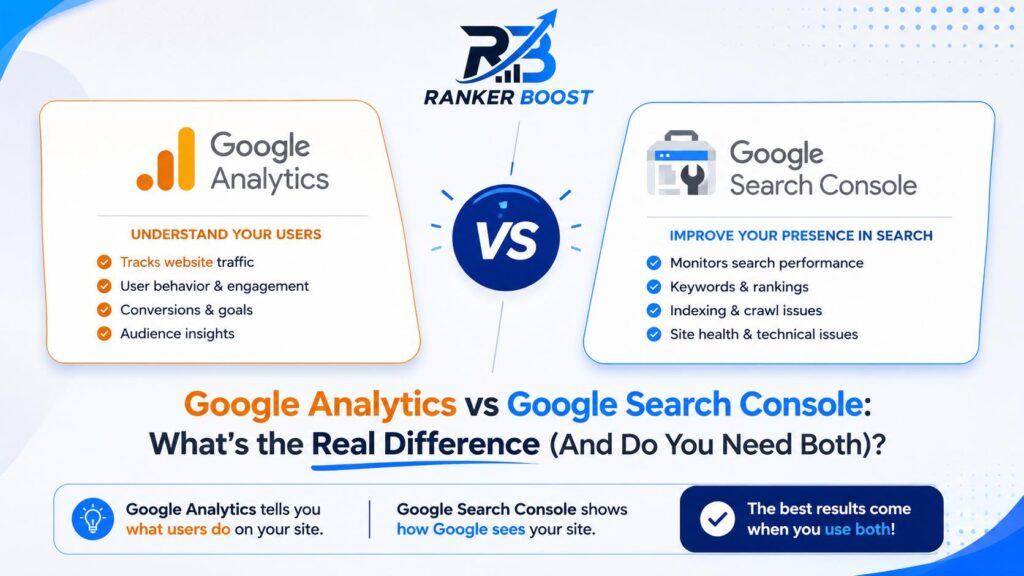
The Short Version (Table Form)
| Google Search Console | Google Analytics (GA4) | |
|---|---|---|
| What it measures | How your site shows up in Google search | What people do once they’re on your site |
| Best for | Rankings, impressions, clicks, indexing problems | Behavior, conversions, traffic by channel |
| Timing | Before the click | After the click |
| Traffic covered | Organic Google search only | All sources – search, social, email, paid, direct |
| Data history | 16 months, that’s the cap | Basically forever, if set up right |
| Cost | Free | Free (GA360 exists for big enterprise accounts) |
| Mainly used by | SEOs and content folks | Marketers, founders, ecommerce teams |
If you only take one thing from this whole article, take this: Search Console shows you the doorway. Analytics shows you what happens once someone’s inside.
Everything else below is really just unpacking that one idea.
Okay, So What Does Search Console Actually Do?
Google Search Console connects your site directly to Google’s index – it’s basically a direct line to the search engine itself, no middleman. Once it’s set up (and verified, which we’ll get to), it shows you things like:
- Which search terms are actually bringing people to your pages, and roughly where you rank for each one
- How many times your listing showed up in results (impressions) versus how many people actually clicked
- Your click-through rate for any page or search term you care about
- Whether your pages are indexed at all, or if something’s quietly blocking them from showing up
- Technical issues – broken links, mobile usability problems, pages that load painfully slow
- Who’s linking back to your site from elsewhere
If your site isn’t connected to GSC yet, genuinely, stop reading for five minutes and go set that up first. Everything else in SEO is harder to figure out without it. You’re basically guessing at your rankings otherwise.
Setting It Up, Briefly
If you’ve never done this – head to search.google.com/search-console, add your property (either the full domain or just a specific URL prefix, domain-level is usually better long term), and verify ownership. Google gives you a few ways to do this: uploading an HTML file to your server, adding a meta tag to your homepage, going through your domain registrar with a DNS record, or just verifying through an already-connected Google Analytics or Tag Manager code. Pick whichever feels least painful – for most WordPress users, the DNS or meta tag route is easiest.
Once verified, submit your sitemap (usually something like yoursite.com/sitemap.xml) so Google has a map of everything on your site. Then… you wait. Data starts trickling in within a day or two, but meaningful patterns take a couple of weeks to show up.
A Few Things That Trip People Up
The data isn’t live – it’s usually a couple of days behind whatever’s actually happening. So if you publish something today and check GSC this afternoon, don’t expect to see clicks yet. Also, for low-traffic search terms, Google lumps a chunk of them under a vague “(other)” category to protect user privacy, so your numbers will never perfectly add up to 100% – and that’s fine, that’s just how it’s designed.
One more thing – GSC counts a “click” as someone leaving the search results page for your site. If they hit back and click your result again, that’s still just one click. But if they click a different result of yours afterward, that’s a second click. It’s a small detail, but it explains why click counts sometimes behave in ways that feel slightly off compared to other analytics tools.
And What About Google Analytics?
GA4 – the current version of Google Analytics, since Universal Analytics got fully shut down back in mid-2023 – is all about behavior. Once someone actually lands on your page, GA4 starts picking up on:
- Where that person came from – organic search, social media, an email link, someone sharing your post directly, a paid ad, whatever channel it was
- What pages they looked at, and in what order they looked at them
- How long they stuck around, and how engaged they seemed
- Whether they did the thing you actually wanted – bought something, filled out a form, signed up for your newsletter, downloaded something
- Their device type, rough location, browser
- Where in your site people tend to give up and leave
Basically – if GSC answers “how did this person find me,” GA4 answers “okay cool, and then what did they actually do?”
Why GA4 Feels Different From the Old Analytics
If you used Analytics a few years back, you probably remember it being session-based – everything tracked in terms of “visits” and “pageviews” in a fairly straightforward way. GA4 switched to event-based tracking instead, meaning literally every click, scroll, video play, or file download gets logged as its own individual event. This is a big part of why bounce rate looks completely different now (it used to mean “left without interacting,” now it’s roughly the inverse of “engaged session”), and why a bunch of old familiar reports just aren’t there anymore. Nothing’s broken – it’s just a different system, built around a different way of thinking about what a “visit” even is.
Setting GA4 Up, Briefly
If you don’t have GA4 running yet, head to analytics.google.com, create an account and a property, and you’ll get a tracking ID (something like G-XXXXXXX) along with a snippet of code. If you’re on WordPress, plugins like Site Kit by Google make this painless – install it, connect your account, done. If you’re hand-coding your site, you’ll drop that snippet into your site’s header, ideally through Google Tag Manager so you’re not editing code every time something changes.
Once it’s live, set up at least one conversion event – even something as simple as “someone viewed my contact page” or “someone clicked my affiliate link.” Without at least one goal defined, GA4 just becomes a wall of numbers with no sense of what actually matters.
Picture It Like a Physical Store
Honestly, the easiest way I explain this to people who are brand new to all this – imagine your website is a shop with a storefront on a busy street.
Search Console tells you how many people walked past your shop, how many slowed down to look at the window display, and how many actually walked through the door – plus, helpfully, which street sign or directory listing pointed them your way in the first place.
Analytics tells you what happened once they were actually inside. Did they wander around and look at a few things? Walk straight to the checkout? Browse for thirty seconds, get bored, and walk back out without buying anything?
Both pieces of information matter, obviously, but in really different ways. If nobody’s noticing your storefront in the first place (low impressions in GSC), it genuinely doesn’t matter how beautiful or well-organized the inside is – nobody’s seeing it. But if people ARE walking in and immediately turning around and leaving (rough numbers in GA4), that’s a completely different problem to solve, and GSC won’t even hint that it’s happening. It’ll just keep telling you “yep, people are clicking your link,” while GA4 quietly tells you “yeah but they’re not staying.”
Google search console vs Google analytics
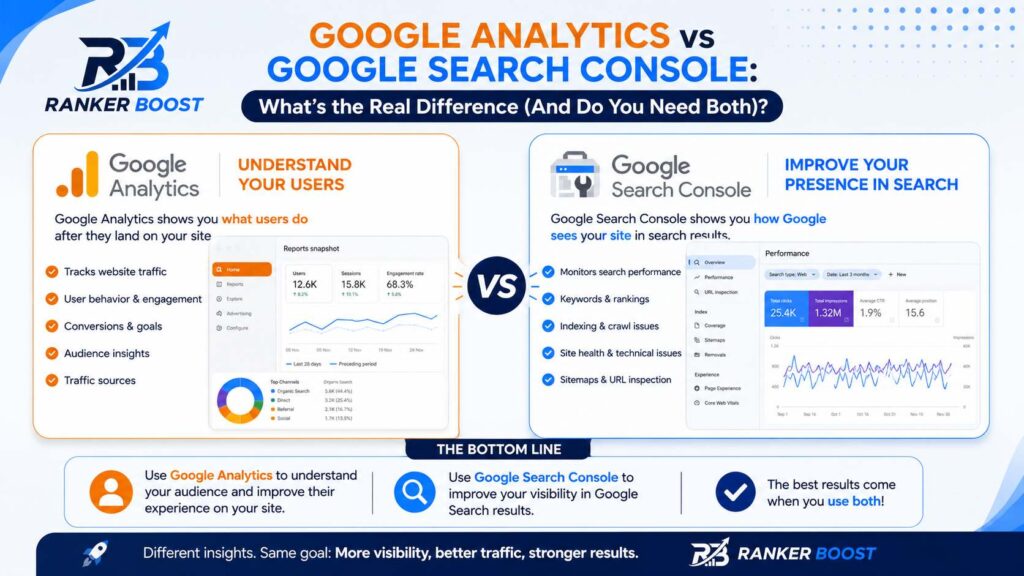
Where These Two Actually Overlap
They’re not living in totally separate worlds, to be fair. Both tools can show you:
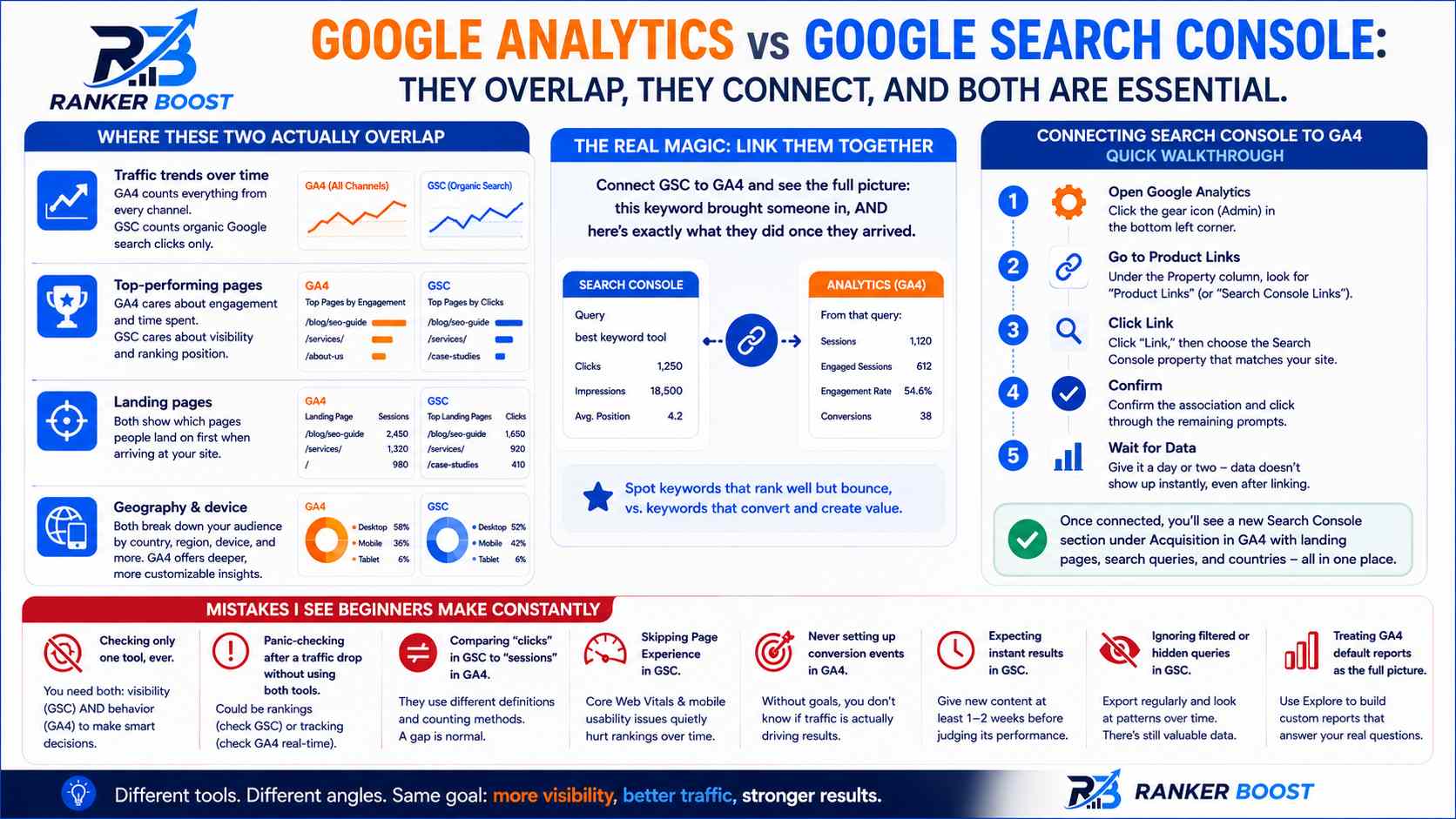
- Traffic trends over time, though GA4 counts everything from every channel and GSC only counts organic Google search clicks specifically
- Your top-performing pages, just viewed from different angles – GA4 cares about engagement and time spent, GSC cares about visibility and ranking position
- Which pages people land on first when arriving at your site
- Geography and device breakdowns, with GA4’s version generally being more detailed and customizable
The real magic, though, happens when you link the two together. You can connect GSC directly inside GA4, which pulls your search query data straight into your Analytics reports. So instead of having two separate stories, you get one combined view – this specific keyword brought someone in, AND here’s exactly what they did once they arrived. That combination is genuinely one of the more useful things you can set up, because it lets you spot keywords that are technically “ranking well” but bringing in people who bounce instantly – versus keywords bringing in fewer people who stick around and actually convert.
Connecting Search Console to GA4 – Quick Walkthrough
This takes maybe five minutes once both accounts already exist and are verified:
- Open Google Analytics and click the little gear icon (Admin) in the bottom left corner
- Under the Property column, look for “Product Links” – sometimes it’s labeled “Search Console Links” depending on your interface version
- Click “Link,” then pick the Search Console property that matches your website
- Confirm the association and click through the remaining prompts
- Give it a day or two – the data doesn’t show up instantly, even after linking
Once it’s connected, you’ll see a new Search Console section pop up under the Acquisition reports inside GA4, showing landing pages, search queries, and countries pulled directly from your search performance data. It’s a small setup step that ends up saving you a ton of back-and-forth between two separate dashboards.
Mistakes I See Beginners Make Constantly
These come up again and again, especially with people newer to SEO or to running their own site in general:
- Checking only one tool, ever. Some people obsess over rankings in GSC but never check whether that traffic actually does anything once it shows up. Others go the opposite direction – tweaking their site endlessly based on GA4 behavior data while their actual search rankings quietly slip, and nobody notices for months.
- Panic-checking after a traffic drop without looking at both tools first. A sudden drop could mean Google stopped ranking you for something important (check GSC for ranking changes), or it could simply mean your tracking code broke and GA4 just… stopped recording anything (check GA4’s real-time report – if it shows zero active users when you know people are on the site, that’s your answer).
- Comparing “clicks” in GSC to “sessions” in GA4 and freaking out when the numbers don’t match. They’re not supposed to match exactly. Different tools, different definitions, different counting methods entirely. A reasonable gap is completely normal and not a sign anything’s wrong.
- Skipping the Page Experience report in GSC entirely. Core Web Vitals and mobile usability issues build up slowly and quietly tank your rankings over time, and most beginners never even open that tab to check.
- Never setting up conversion events in GA4. Without these, you’re just staring at traffic numbers with zero sense of whether any of it actually matters to your business or goals. Even something basic, like tracking “visited the contact page” as a goal, beats having nothing set up at all.
- Expecting instant results in Search Console. People publish a new post and check their rankings that same afternoon, then get discouraged when nothing’s there yet. Give new content at least a week, often closer to two, before drawing any conclusions.
- Ignoring the filtered or hidden queries in GSC. Yes, some low-volume search terms get hidden under “(other)” for privacy reasons, but exporting your query data regularly and looking at it over time still reveals useful patterns that a single snapshot won’t show you.
- Treating GA4’s default reports as the full picture. GA4 ships with a ton of pre-built reports, but the “Explore” section lets you build custom reports tailored to whatever you’re actually trying to figure out. Most beginners never venture past the default Reports Snapshot, which barely scratches the surface of what’s available.
Which One Should You Open First?
Honestly, it depends entirely on what question you’re trying to answer that particular day.
Working on SEO or content strategy? Start in Google Search Console. Specifically, look for queries that are getting a decent number of impressions but a really low click-through rate – that’s usually a sign your title tag or meta description isn’t compelling enough to earn the click, even when Google’s already showing your page to people. Also check what’s ranking somewhere on page two of results, since those are often your quickest wins – a small content update can sometimes push a page from position 12 to position 6.
Trying to figure out conversions, or understand who’s actually visiting your site and what they care about? Start in GA4. Look at which traffic source has the best engagement and conversion rate, and dig into where exactly people are dropping off before completing whatever action you want them to take.
Just doing a general weekly or monthly check-in? Glance at both, even briefly. GSC tells you “is Google still finding this site and treating it well.” GA4 tells you “are the people actually showing up doing anything useful once they’re here.” Together, those two questions cover most of what you need to know about how your site is doing overall.
A Real Scenario to Make This Click
Say you write a post titled something like “how to start a blog for beginners.” A few weeks go by, and you check Search Console – the page is getting around 2,000 impressions a month, which is decent for a newer site. But the click-through rate is sitting at around 1.2%, which is way below what you’d expect for that ranking position.
That’s a Search Console problem, specifically. People are seeing your listing show up in results, but your title or meta description isn’t convincing enough to make them actually click it, even though Google’s already putting it in front of plenty of eyeballs. The fix here is usually rewriting your title to be more specific or more compelling – adding a number, a year, a clearer benefit, something that stands out next to the other results on the page.
Now flip the scenario completely. Say that same page gets a solid 5% click-through rate – people are clicking just fine, no problem there. But when you check GA4, the average engagement time on that page is something like 12 seconds, and almost nobody scrolls past the first paragraph or two.
That’s a GA4 problem, and a completely different one. People wanted to click – your title and meta description did their job – but the content itself isn’t holding anyone’s attention once they arrive. Maybe the intro doesn’t deliver on what the title promised. Maybe it’s a giant wall of text with no headers, images, or breaks, and people just bail the second they see it.
Same exact page, but two genuinely different problems with two genuinely different fixes – and you’d only catch both of them by actually looking at both tools side by side. If you only checked GSC, you’d think “great, my title works fine, why isn’t this page performing?” If you only checked GA4, you’d think “people clearly don’t care about this topic” when actually they were curious enough to click – they just didn’t stick around.
Google search console vs Google analytics
Quick FAQ:-Google search console vs Google analytics
No, not even close, despite how often people lump them together. Search Console is specifically about how your site performs in Google’s search results – rankings, impressions, clicks, and indexing status. Analytics is about what visitors actually do once they’ve landed on your site, regardless of where they came from. Different jobs, different data, different dashboards entirely.
For any real SEO or growth work, you genuinely need both. GSC without GA4 means you know what’s technically ranking, but you have no idea if any of that traffic is doing anything valuable once it arrives. GA4 without GSC means you understand visitor behavior reasonably well, but you’re completely blind to your actual search performance and any technical SEO issues quietly building up in the background.
Because, fundamentally, they’re measuring different things in different ways. GSC counts clicks specifically from Google’s organic search results. GA4 counts sessions from every traffic source combined – search, social, direct, email, everything – using its own internal rules for what counts as a session versus a new visit. A small gap between the two is completely expected and normal. A massive, unexplainable gap might be worth investigating, but a modest difference is just how these tools work.
Yes, for the overwhelming majority of websites, GA4 is completely free with no catches. There’s an enterprise-grade paid version called Google Analytics 360 aimed at large companies with very high traffic volumes and advanced data needs, but realistically, most blogs, small businesses, and even mid-sized stores will never come close to needing it.
Up to 16 months, and that’s the hard cap – there’s no way to extend it within the tool itself. If you want to analyze trends going back further than that, you’ll need to be exporting and storing your data somewhere else on a regular basis, since GSC itself won’t hold onto it.
Search Console, generally speaking. It’s simpler to wrap your head around, and it’s more directly tied to the question most beginners actually care about – “is my SEO doing anything at all?” GA4 has a steeper learning curve and becomes genuinely more useful once you’ve got enough traffic flowing in to actually spot meaningful behavior patterns. Trying to learn GA4 deeply with almost no traffic can feel like staring at an empty spreadsheet.
Yes, absolutely. Both tools have gotten significantly more beginner-friendly over the years, and the setup process for both – especially if you’re on WordPress with a plugin like Site Kit – really is mostly clicking through prompts rather than touching any actual code. The learning curve is more about understanding what the numbers mean than about the technical setup itself.
Wrapping This Up
Despite the “vs” sitting right there in the title – mine included, admittedly – Google Analytics and Search Console really aren’t competing tools at all. They’re just covering two different halves of the exact same story. GSC tells you whether Google can actually find, understand, and rank your content in the first place. GA4 tells you whether the people Google sends your way are doing anything meaningful once they actually get there. Google search console vs Google analytics
If you haven’t set both of these up yet, it’s realistically about 20 minutes of total work between the two, plus a short wait for verification and data to start flowing in. Get into the habit of glancing at Search Console weekly and digging into GA4 at least once a month, and within a few months, you’ll have a genuinely clear, honest picture of what’s working on your site, what isn’t, and exactly where to put your time and energy next – instead of guessing, or worse, only ever looking at one half of the picture and wondering why things aren’t quite adding up.
Google search console complete guide in 2026 :- Read more